Track an import and read its report
The My imports page in Avelsta: upload history, state of each file, report (sessions created, duplicates, failures), retrying failures and dating a log without a date.
The essentials
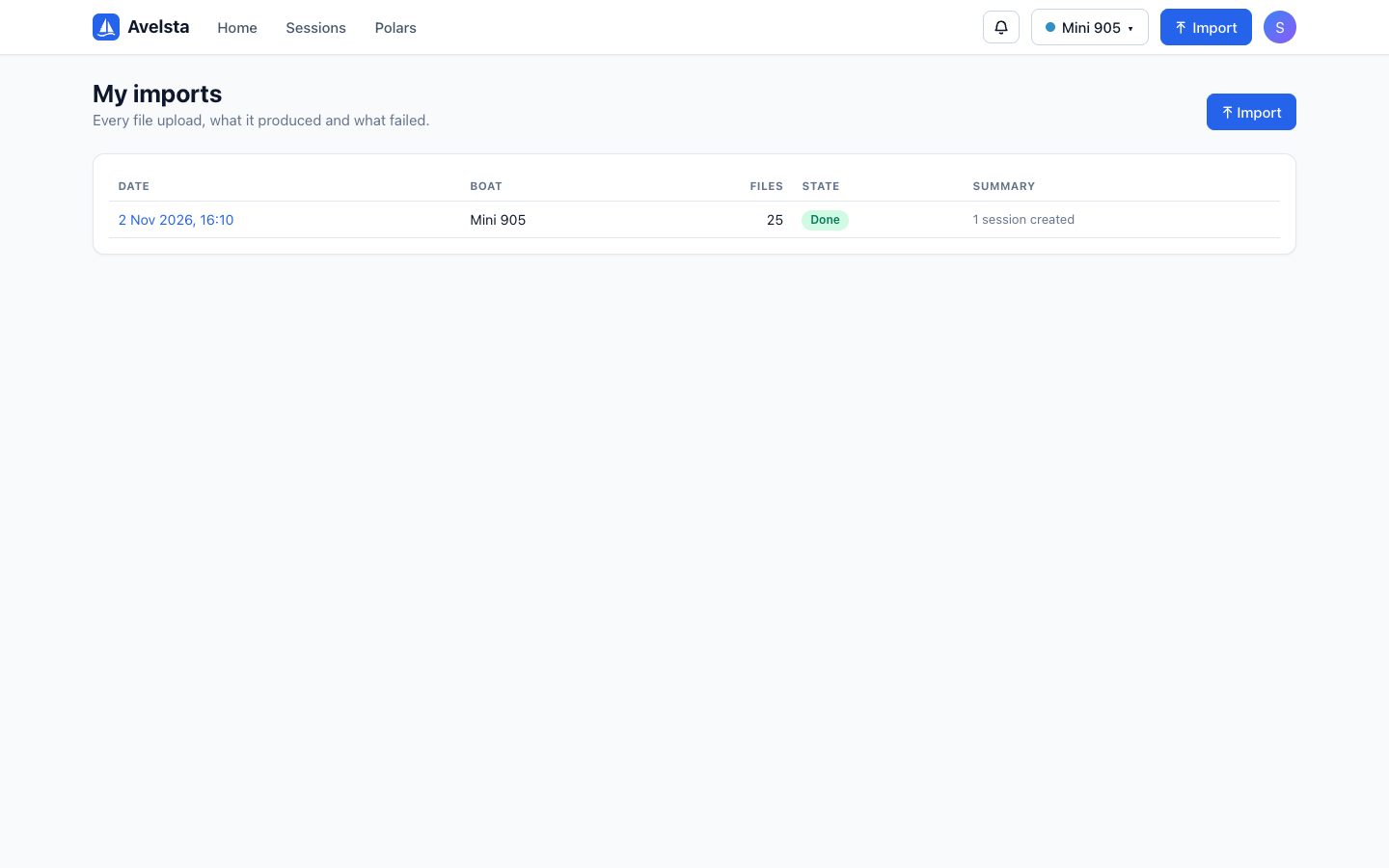
Each upload of files is an import. The My imports page (profile menu, or the “All my imports” link of the import panel) lists your imports, what they produced and what failed.
- Open the profile menu (avatar at the top right), then My imports.
- Find the import by its date, boat, number of files and state.
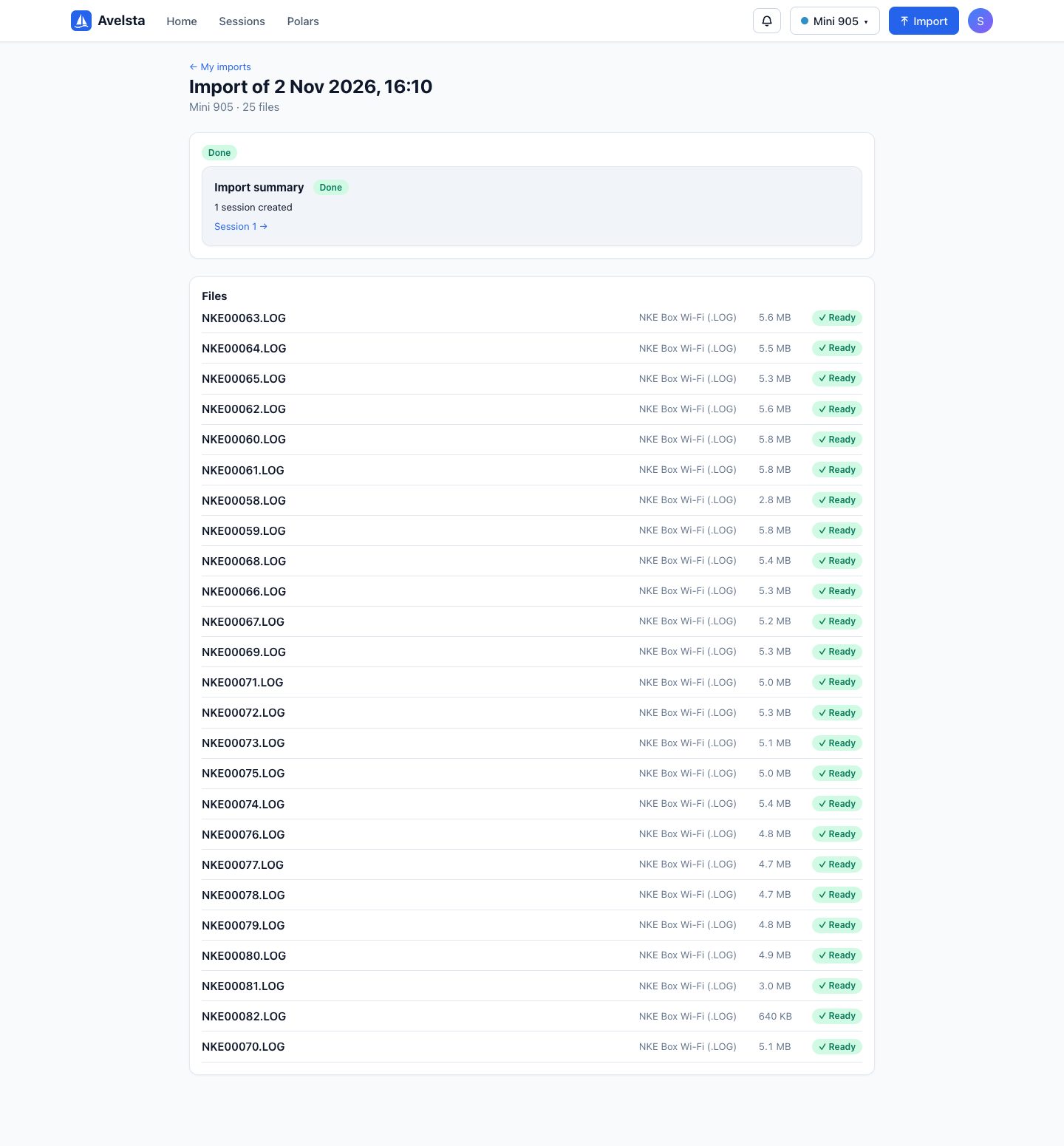
- Click it to see the report and the state of each file.
- From a “Ready” file, follow the see the session link.
Going further
Import states
| State | Meaning |
|---|---|
| Processing | Files being read, sessions being built |
| Done | Everything was processed |
| Done with errors | At least one file failed, is incomplete or unsupported; the rest is processed |
| Failed | Building the sessions failed: use Retry the failures |
| Abandoned | The upload was never finished (after 24 h) |
File states
| State | Meaning |
|---|---|
| Uploaded, Processing | Received, being read |
| Ready | Read; the link leads to the session built with this file |
| Already imported | Identical file already on this boat: ignored |
| Unsupported format | Neither an NKE Box WiFi .LOG nor an NKE Processor HR .nkz |
| To date | The log holds no date: to be completed (see below) |
| Ignored | Log without a date set aside at your request |
| Incomplete upload | The file never arrived in full: upload it again |
| Error | Reading failed; the message explains why |
The report
The report counts the sessions created, updated (new data on an existing session) and merged (two sessions that became one), as well as duplicates, failures, unsupported formats and files to date.
Retrying failures
If a step failed (temporary technical error), the Retry the failures button puts the failed tasks back in the queue. A damaged file will fail again: see Import errors.
Date a log without a date
Some recordings carry no time at all (no GPS when recording, no clock). They show up as To date:
- In the import details, on the file’s line, enter the Start and End of the recording.
- Click Confirm: the file is processed with these dates and joins the boat’s sessions.
- Or click Ignore this file: it is set aside and will not be processed.
Dating is only available with an account.
Interrupting and resuming
A batch whose upload was cut off (tab closed, connection lost) shows Finish the import with the files received: the files that arrived are checked and processed, the others are marked incomplete and can be uploaded again in a new import.
How many imports are shown?
The last 100 imports. The Clear finished uploads button of the import panel hides finished batches from the “Recent imports” list without deleting anything.