Import your sailing logs
Import NKE logs (.LOG, .nkz) into Avelsta step by step: choose the boat, drop several files, upload, background processing and end-of-import notification.
The essentials
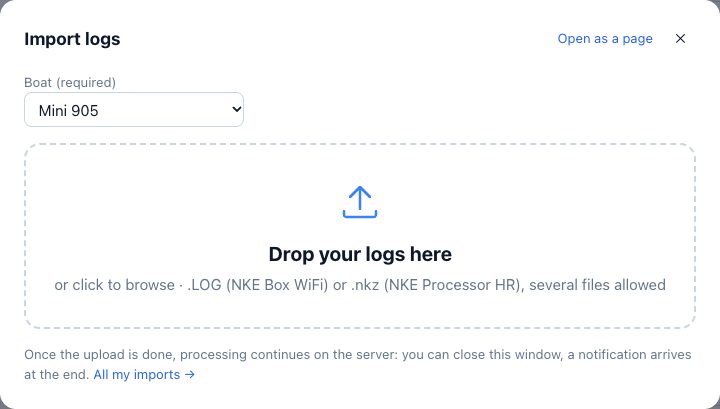
- Click Import at the top right (or drop your files on the home screen of a new account).
- Choose the boat that recorded these logs (required).
- Drop your
.LOGor.nkzfiles in the drop area, or click to pick them. Several files at once, up to 500 per upload. - Keep the tab open during the upload (progress bar per file).
- Once the upload is over, the processing carries on on the server: you can close the window. A notification arrives at the end with the report.
Going further
During the upload
Each file goes straight from your browser to Avelsta’s storage. The panel shows “Uploading n / total” and the progress of each file.
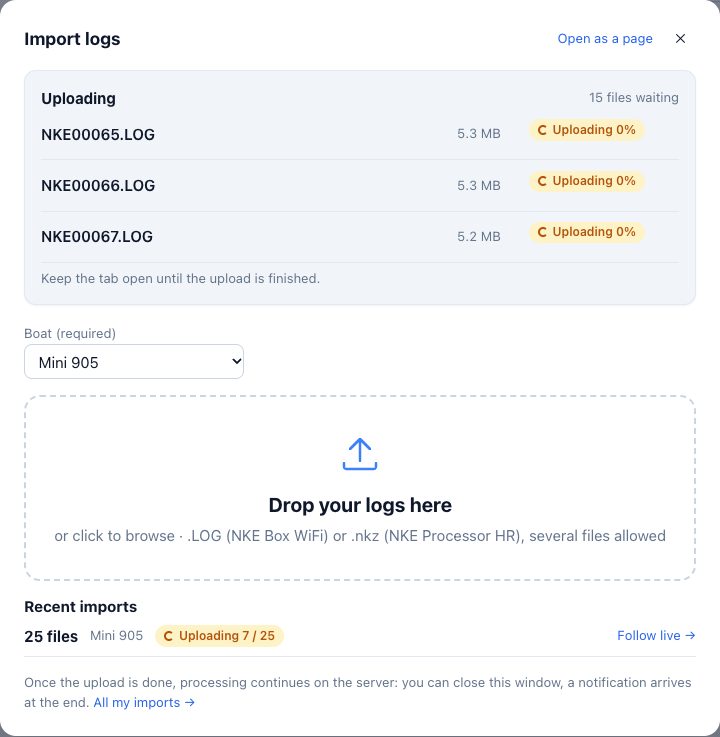
If the tab is closed or reloaded during the upload, the batch stays interrupted: nothing is processed until the import is finished. Open the panel again and click Finish the import with the files received, then upload the missing files again. A batch that is never finished is abandoned after 24 hours.
During the processing
The batch switches to Processing. Avelsta reads each file, rebuilds the boat’s timeline, detects the time spent at the dock, then creates or updates the sessions. The steps are shown in Follow live: splitting into sessions, mark detection, building, finalising, computing the statistics.
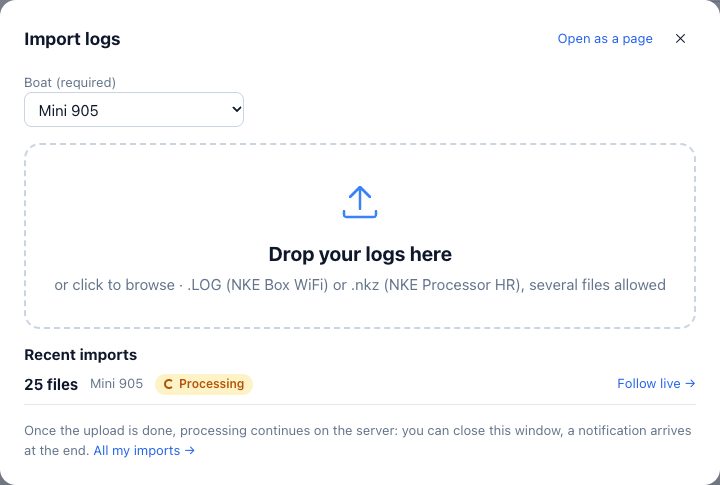
Meanwhile, the Import button shows a counter of the imports in progress.
At the end
The batch switches to Done (or “Done with errors”) and shows its report: sessions created, updated or merged, duplicates, failed files or files to date. A notification sums up the result and links to the session created.
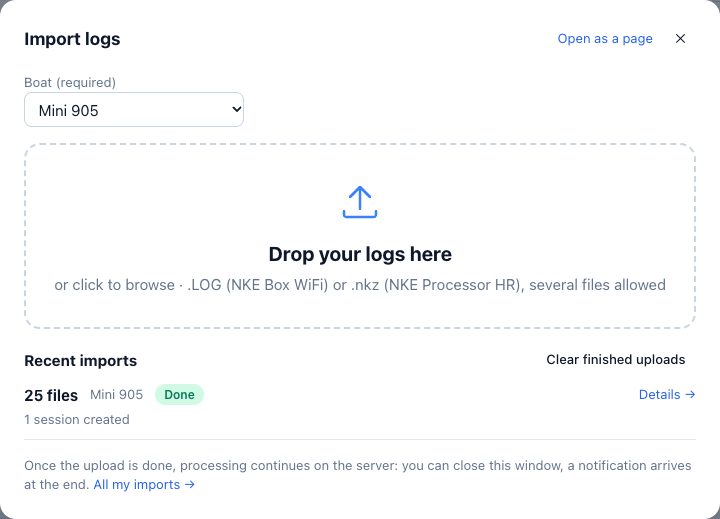
The file-by-file details are in My imports.
Importing logs that overlap an existing session
You can import more files covering a period already known (for example the logs of a second box): the data is merged into the boat’s timeline and the sessions concerned are updated, without duplicates. See How sessions are built.
Upload size
With an account, upload size is not limited; only the number of files is (500). Without an account, an upload is limited to 200 MB.
Frequently asked questions
How long does the processing take?
From a few seconds to a few minutes depending on the volume: a 24-hour sailing session (25 files) is ready in less than a minute. A batch of several hundred logs spread over months can take about twenty minutes.
Can I import the logs of several boats at once?
No: an upload goes to a single boat. Make one upload per boat.
Do I need to sort my files by sailing session?
No. Upload all your logs: Avelsta splits the sessions itself, based on stops and time at the dock.